
Local LLM Setup Guide for Windows (2026)

Running a large language model on your own Windows PC used to mean wrestling with Python environments, CUDA drivers, and command-line flags. That is no longer the case. In 2026, tools like Ollama and LM Studio let you install a local AI assistant in minutes, with no subscription, no API key, and no data leaving your machine.
This guide walks you through everything you need: hardware requirements, installation steps for the two most popular tools, your first model download, and the troubleshooting steps for the errors you are most likely to hit along the way.
A local LLM is useful for developers who want a private coding assistant, writers who want an offline drafting tool, or anyone who is simply tired of paying per-token cloud fees. Whatever the reason, this guide gets you from a blank Windows machine to a working local AI in under 30 minutes.
What Is a Local LLM?
A local LLM (large language model) is an AI model that runs entirely on your own computer instead of on a remote server. Instead of sending your prompts to a company’s cloud API, the model’s weights are downloaded once and then loaded into your PC’s memory, where all processing happens.
This has three practical benefits:
- Privacy — your prompts and documents never leave your machine.
- Cost — no per-token or subscription fees after the initial download.
- Offline access — once a model is downloaded, it works without an internet connection.
The trade-off is hardware. Local models are limited by your CPU, RAM, and especially your GPU’s VRAM, so they are generally smaller and less capable than the largest cloud-hosted models.
Prerequisites
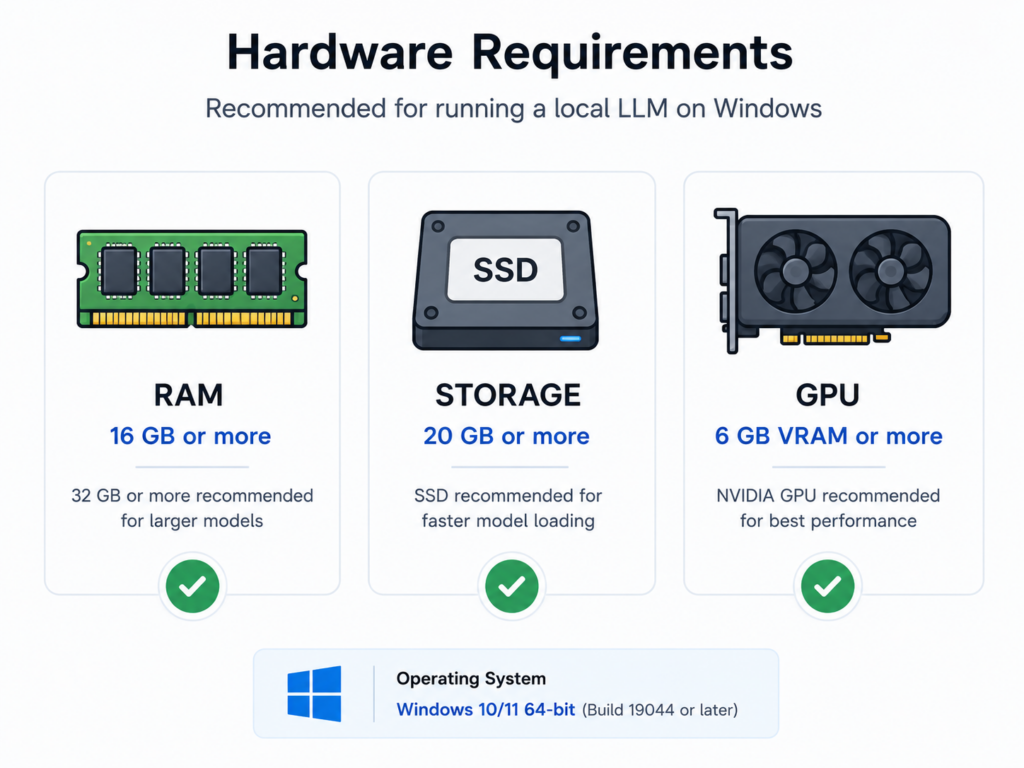
Before you start, make sure your system meets the following baseline. These are practical minimums for a smooth experience, not hard technical limits — smaller models will run on weaker hardware, just more slowly.
| Requirement | Minimum | Comfortable |
|---|---|---|
| OS | Windows 10 (recent build) or Windows 11 | Windows 11 |
| RAM | 8 GB | 16–32 GB |
| Storage | 10 GB free (SSD preferred) | 50+ GB free (models range from roughly 2–70 GB each) |
| GPU | None required (CPU-only works, just slower) | NVIDIA GPU with 6 GB+ VRAM, or Apple Silicon equivalent on Mac |
| CPU | Any modern 64-bit CPU (AVX2 support recommended) | Recent Intel/AMD desktop or laptop CPU |
A note on GPUs: VRAM matters more than raw GPU speed for local LLMs. A model that doesn’t fit in VRAM will spill into slower system RAM, which causes a noticeable drop in response speed. If you’re on a laptop with an integrated GPU or no dedicated GPU at all, the setup below still works — it just runs on the CPU.
You do not need administrator rights, a Python installation, or any prior AI/ML experience for either tool covered in this guide.
Choosing a Tool: Ollama vs. LM Studio
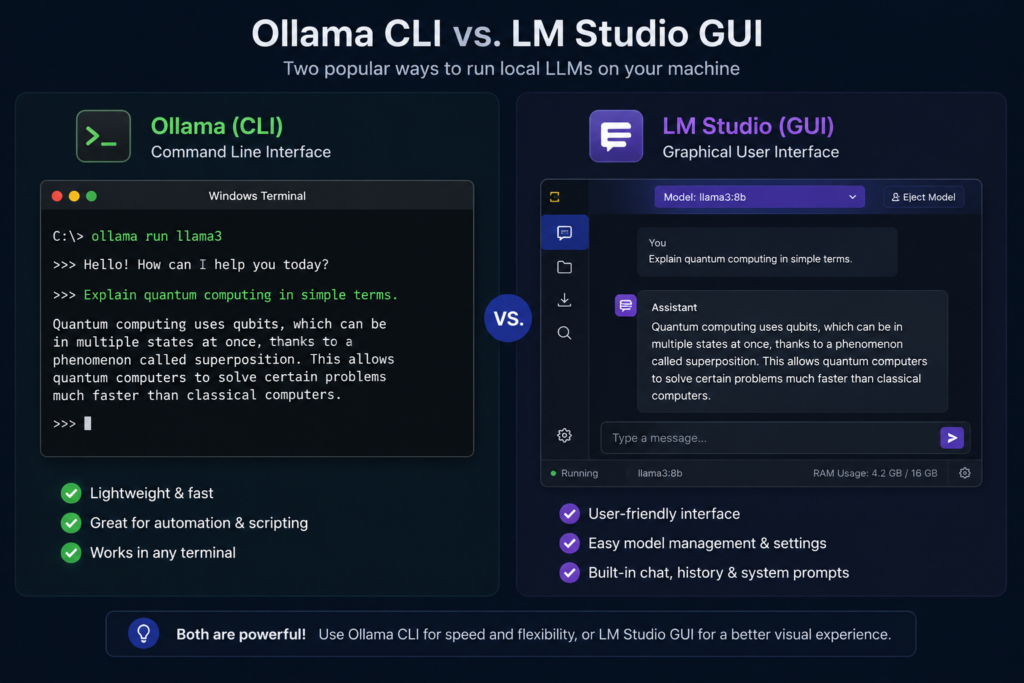
Both tools are free and run on the same class of open-weight models. The right choice depends on whether you prefer the command line or a graphical interface.
| Feature | Ollama | LM Studio |
|---|---|---|
| Interface | CLI-first, with a native desktop chat window | GUI-first, no terminal required |
| Best for | Developers, automation, scripting, API integration | Beginners, visual model browsing, quick experimentation |
| Model format | GGUF via its own model library | GGUF via a Hugging Face–connected browser |
| Local API | OpenAI-compatible endpoint at localhost:11434 | OpenAI-compatible endpoint at localhost:1234/v1 |
| Install size | Small installer (a few MB); models downloaded separately | Larger installer with the full app bundled |
| GPU support | NVIDIA (CUDA) and AMD on Windows | NVIDIA, AMD, and Intel GPUs via llama.cpp |
If you want to be productive in five minutes without touching a terminal, start with LM Studio. If you want a background service you can script against or connect to other apps, start with Ollama. Many users end up installing both — they do not conflict with each other.
Step 1: Install Ollama on Windows
- Open your browser and go to the official download page at Ollama. Always download from the official Ollama site — avoid third-party mirrors.
- Run the downloaded
OllamaSetup.exefile. No administrator rights are required for a standard-user install. - Windows SmartScreen may flag the installer as unrecognized because it is not digitally signed with a widely trusted certificate. If you downloaded it from the official site, click More info → Run anyway.
- The installer runs a short wizard and starts the Ollama background service automatically. An icon appears in your system tray.
- If Windows Firewall prompts you, click Allow access for private networks. This only allows local apps on your PC to reach Ollama at
localhost:11434— it does not expose anything to the internet. - Open a new PowerShell or Command Prompt window (the terminal that was open before installation won’t see the updated PATH) and confirm the install:
powershell
ollama --versionIf you see a version number, the install succeeded.
Pull and Run Your First Model
powershell
ollama run llama3.1This single command downloads the model (several gigabytes, depending on the model) the first time you run it, then drops you into an interactive chat session. Subsequent runs load instantly from your local cache. Smaller, faster options for modest hardware include phi3:mini and qwen2.5:7b.
To check which models you have installed:
powershell
ollama listTo start Ollama’s local API server explicitly (it usually starts automatically):
powershell
ollama serveStep 2: Install LM Studio on Windows
- Go to the official LM Studio site and download the Windows installer.
- Run the installer and follow the on-screen prompts — no configuration is required for a default install.
- Launch LM Studio from the Start menu. GPU detection (NVIDIA, AMD, or Intel) happens automatically.
- Open the Discover tab and search for a model by name (for example, “Llama” or “Qwen”). Click Download on a model that matches your hardware — the app will flag models that are too large for your available RAM/VRAM.
- Once downloaded, open the Chat tab, select the model from the dropdown, and start typing. This works exactly like a ChatGPT-style interface, but entirely offline after the model is downloaded.
- If you want a local API for your own code or apps, open the Developer tab and enable the server toggle. This exposes an OpenAI-compatible endpoint you can point any OpenAI SDK at, with no code changes beyond the base URL.
Choosing the Right Model
Model names typically include a parameter count (e.g., 7B, 8B) and a quantization level (e.g., Q4_K_M, Q8). As a rule of thumb:
- Smaller / more quantized models (7B–8B at Q4) run comfortably on 8–16 GB of RAM or 6–8 GB of VRAM and respond faster.
- Larger / less quantized models (13B and above, or Q8 quantization) need more memory but generally produce higher-quality output.
- If a model fails to load with an out-of-memory error, try a smaller model or a more aggressive quantization (Q4 instead of Q8) rather than assuming your hardware can’t run local models at all.
Best Practices
- Start small. Test with a lightweight model (3B–8B parameters) before downloading anything large. This confirms your setup works before you commit tens of gigabytes of storage and bandwidth.
- Match quantization to your hardware. Q4_K_M is a solid default balance of speed and quality for most consumer GPUs.
- Keep the default context length unless you need more. A larger context window uses significantly more memory; only increase it if you’re working with long documents or conversations.
- Update your GPU drivers. For NVIDIA cards, keep drivers current — Ollama and LM Studio both rely on the driver for CUDA acceleration.
- Use the local API for integrations. Both tools expose an OpenAI-compatible endpoint, so most existing OpenAI SDK code will work against your local model with only a base-URL change.
- Monitor disk space. Model files can range from roughly 2 GB to 70+ GB. Delete models you’re no longer using with
ollama rm <model>or through LM Studio’s model manager.
Common Mistakes to Avoid
- Assuming you need a high-end GPU to get started. CPU-only inference works — it’s just slower. Many users successfully run 7B-class models on a laptop with no dedicated GPU.
- Running commands in an old terminal window. After installing Ollama, PATH changes only apply to newly opened terminal sessions.
- Downloading the largest available model first. This wastes bandwidth and storage if it turns out to be too slow or doesn’t fit in memory. Start small and scale up.
- Ignoring quantization. Downloading an unquantized (full-precision) model when a Q4 or Q5 quantized version would run just as well for most everyday tasks.
- Downloading installers from unofficial mirrors. Only use the official Ollama or LM Studio download pages to avoid tampered or outdated installers.
Troubleshooting
| Symptom | Likely Cause | Fix |
|---|---|---|
'ollama' is not recognized | PATH not updated in the current terminal session | Close all terminal windows and open a new one |
| SmartScreen warning on install | Installer isn’t signed with a widely trusted certificate | Click “More info” → “Run anyway” (only if downloaded from the official site) |
| Model won’t load / out-of-memory error | Model is too large for available RAM/VRAM | Choose a smaller model or a more aggressive quantization (e.g., Q4 instead of Q8) |
| “Connection refused” when calling the local API | The background service isn’t running | Check the system tray icon, or run ollama serve manually |
| Very slow responses | Model is running on CPU instead of GPU, or spilling into system RAM | Check GPU offloading settings; try a smaller model that fits in VRAM |
| Port conflict on 11434 | Another process is using Ollama’s default port | Run `netstat -ano |
Real-World Use Cases
- Private coding assistant — connect a local model to your IDE via its OpenAI-compatible API for code completion without sending proprietary code to the cloud.
- Offline writing and research tool — draft, summarize, or brainstorm on a laptop with no internet connection, such as during travel.
- Document Q&A — some local setups support retrieval-augmented workflows so you can “chat” with your own PDFs entirely offline.
- Learning and experimentation — test how different open-weight models behave without incurring API costs, useful for students and hobbyists exploring AI.
- Cost control for high-volume prototyping — developers iterating heavily on prompts can prototype locally before moving to a production cloud model.
Frequently Asked Questions
Is running a local LLM on Windows free?
Yes. Both Ollama and LM Studio are free to download and use, and the open-weight models available through them (such as Llama and Qwen family models) are free as well. The only cost is your own hardware and electricity.
Do I need a GPU to run a local LLM on Windows?
No. Both Ollama and LM Studio run on the CPU if no compatible GPU is detected. A GPU significantly speeds up response times, but it is not a hard requirement, especially for smaller models.
Is a local LLM as good as ChatGPT or other cloud AI models?
Local models have improved dramatically, but the largest cloud-hosted models generally still outperform what most consumer hardware can run locally. For everyday tasks — drafting, coding help, summarization — a well-chosen local model is often good enough, particularly when privacy or offline access matters more than absolute top-tier quality.
Ollama vs. LM Studio — which should I choose?
Choose LM Studio if you prefer a graphical interface and don’t want to use a terminal. Choose Ollama if you want a lightweight background service you can script or integrate into other tools. Both use the same underlying model formats, and many users install both.
Is my data really private with a local LLM?
Once a model is downloaded, all inference happens on your own machine, and your prompts are not sent anywhere by default. Keep in mind this only applies to the local inference itself — always check any third-party plugin or integration you connect to your local setup for its own data-handling behavior.
How much storage do local LLMs need?
Individual model files typically range from about 2 GB to 70+ GB, depending on parameter count and quantization. Budget at least 10–20 GB of free space to get started comfortably, more if you plan to try multiple models.
Can I use a local LLM with my own applications?
Yes. Both Ollama and LM Studio expose an OpenAI-compatible local API, so most existing code written for the OpenAI SDK will work by simply pointing the base URL to your local endpoint (localhost:11434 for Ollama, localhost:1234/v1 for LM Studio).
Does this setup work the same way outside the US?
Yes. Ollama and LM Studio are free, cross-platform tools with no region locking. The installation steps in this guide are identical for readers in the UK, Canada, Australia, Germany, or anywhere else — only your internet speed during the initial model download will vary.
Summary and Next Steps
You now have everything needed to run an AI model locally on Windows: a hardware checklist, step-by-step installation for both Ollama and LM Studio, your first model running, and a troubleshooting table for the most common errors.
Next steps:
- Try a second, larger model once your first setup is confirmed working.
- Explore the local OpenAI-compatible API if you plan to integrate a local model into your own code or IDE.
- If you’re on a laptop, test battery and thermal impact before relying on local inference for long working sessions.